Scan a Document for Chemistry
Find chemical names and printed structure drawings in a PDF, review every occurrence beside the source page, and import confirmed structures.
Start a scan
- Choose
File > Scan Document for Chemistry…. - Select one PDF with the standard macOS file picker.
- For PDFs longer than 10 pages, select the first and last page before scanning. The default is pages 1–10; All Pages selects the whole document. Thumbnails help choose a range. Results retain the original PDF page numbers.
- AtomLens opens a native PDF preview, extracts text, and scans the selected pages for chemical names and printed structure drawings.
- Review the occurrence table beside the document. Drag the divider when either the PDF or the table needs more room.
The PDF remains read-only. Scanning does not alter the selected document. On iPad, choose Scan PDF in Library or Add > Scan PDF for Chemistry in a document, then select the PDF in Files. The labeled back button returns to the starting screen. After importing, View Library opens your saved structures. Page selection, processing, filtering, and repository import use the same workflow; tap rows to select multiple results.
What happens during a scan
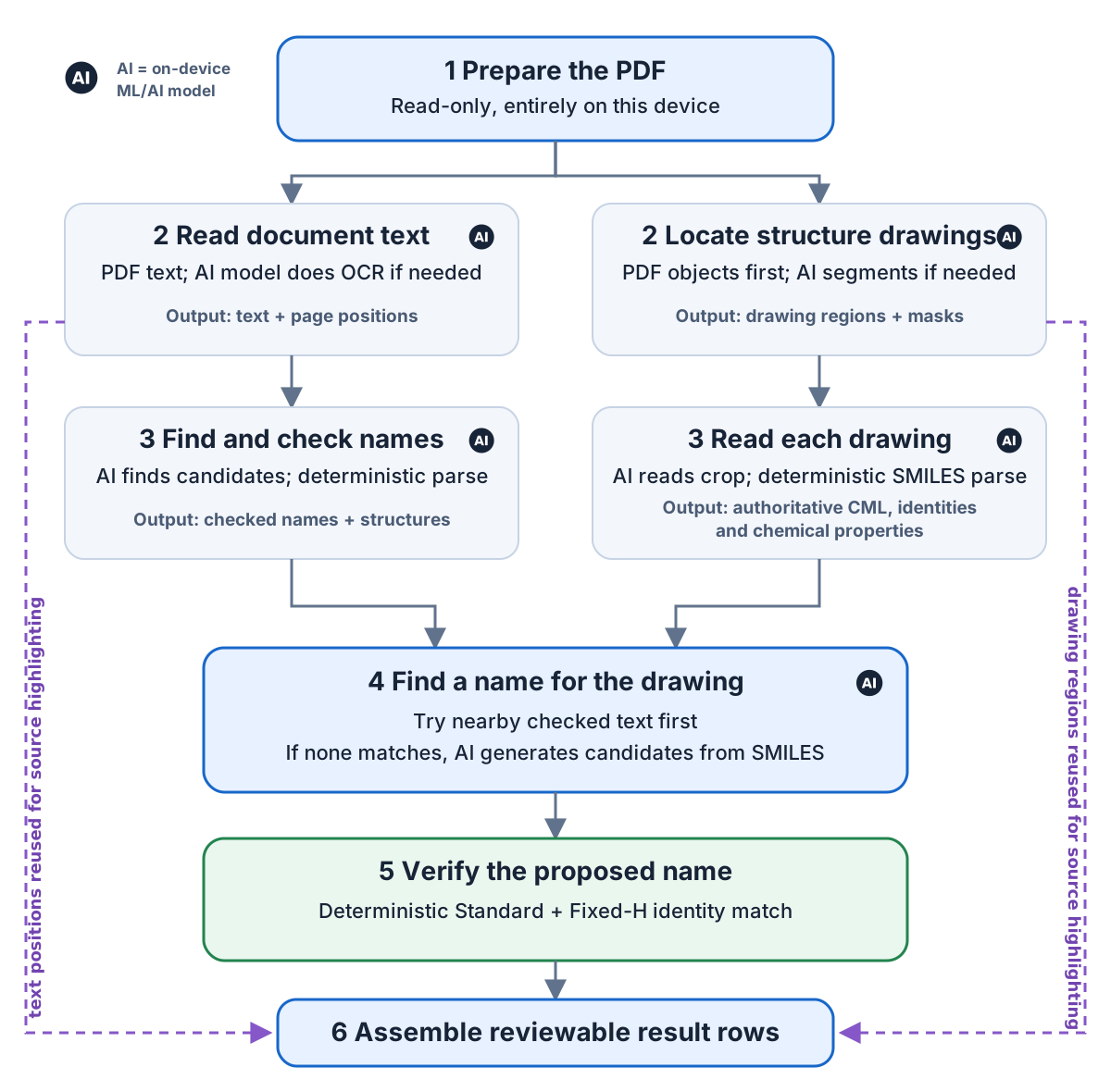
AtomLens processes the document in a series of on-device steps. Some intermediate results are deliberately reused: text positions help match names to drawings and later highlight the source, while the structure read from a drawing supplies the identity used to verify every proposed name.
- Prepare the PDF. AtomLens reads embedded text and records where it appears on each page. If a page has no usable text layer, an on-device AI model reads the page with optical character recognition (OCR).
- Find chemical names. An on-device AI model finds likely chemical names in the text. AtomLens cautiously repairs common PDF glyph and line-wrap problems, then a deterministic name-to-structure parser checks whether each candidate describes a structure.
- Locate structure drawings. AtomLens first looks for embedded image and vector-drawing objects in the PDF. An on-device AI segmentation model examines suitable objects and scans a whole page only when the PDF is a page image or object extraction is incomplete.
- Read each drawing. An on-device AI model converts each drawing crop to SMILES. AtomLens independently and deterministically parses that SMILES into the authoritative structure, CML, Standard and Fixed-H identities, and available chemical properties.
- Attach a verified name. AtomLens first tries already detected names close to the drawing. If none matches, an offline AI naming model proposes up to five names from the recognized SMILES. A name is attached only when deterministic name parsing reproduces the same Standard and Fixed-H structure identities.
- Assemble the results. A matching nearby name and drawing become one row, and selecting it highlights both source areas. Remaining occurrences stay separate and retain their page positions for review, filtering, preview, and import.
Understand the results
- Green — Translated: deterministic name parsing accepted the extracted name. AtomLens shows a structure thumbnail.
- Green — Adjacent name: AtomLens found this name near an AI-recognized drawing. Deterministic parsing accepted it, and both structure identities matched the drawing. The name and drawing are combined into one result.
- Green — Generated name: one on-device AI model read a printed drawing as SMILES and a separate offline AI model proposed the displayed name. Deterministic name parsing then reproduced both Standard and Fixed-H identities of the independently parsed drawing structure.
- Green — Recognized drawing: the drawing and its authoritative CML were recognized successfully, but no name passed the strict identity gate. AtomLens therefore keeps the recognized SMILES as the display value.
- Orange — Not translated: the AI name recognizer found a possible chemical name, but deterministic parsing could not translate it. Keep the highlighted source text as the authoritative context.
- An orange drawing result means segmentation succeeded but crop recognition or SMILES parsing did not. The detected drawing remains highlighted for review.
- Each row represents one occurrence. Repeated names or drawings therefore appear more than once and retain their page locations.
Search and navigate
- Select a row to reveal and highlight that occurrence on its PDF page. Text uses its source range; a drawing uses its page-space instance mask and bounding box. Command-click adds or removes individual rows, and Shift-click extends the selection.
- Choose Select All, or press
Command-Awhile the result list is active, to select every visible result. - Use the toolbar search field to filter the extracted terms without rescanning the PDF.
- Show only rows with validated IUPAC names is enabled by default. Turn it off to review possible names that could not be translated and recognized drawings without an identity-matched name.
- Click a highlighted PDF region to reveal its result row. An active text or validation filter can hide that row; clear the filter to review it.
- Use the zoom out, fit, and zoom in controls above the PDF preview.
- Double-click a translated result to open its structure in a new molecule window.
- For a translated name with a loaded thumbnail or a recognized structure drawing, press
Spaceto open or close the larger Quick Look structure preview. Drawing previews use the independently parsed CML. - Choose Import into Managed Repository to import selected confirmed name- and drawing-derived structures. AtomLens unifies repeated occurrences exclusively by Fixed-H InChIKey, skips and reports selected occurrences for which that identity is unavailable, skips structures with that identity already present in the Managed Repository, and records the scanned PDF filename as the source filename for every added structure.
Recognition and accuracy
AtomLens first uses embedded PDF text. When a page does not provide usable text, an on-device AI model can read it with OCR. The scanner then repairs a conservative set of common PDF glyph and line-wrap problems, including chemical names divided across line endings.
For printed drawings, AtomLens first inspects the PDF's own embedded image and vector objects. Suitable objects are used directly or examined by an on-device AI segmentation model. A full-page AI segmentation pass is reserved for page-sized bitmap scans, pages without usable drawing objects, or incomplete object-level preparation. Drawing crops are rendered at 300 DPI with padding before an AI drawing-recognition model reads them. A separate offline AI naming model proposes systematic-name candidates only after drawing recognition, and only when no matching nearby name was found. AI output never replaces the independently parsed CML or defines structure identity. This path is for printed structure drawings, not hand-drawn structures. Dense layouts, labels, reaction schemes, and poor scans can still create missed or false drawing results.
Scans, unusual fonts, diagrams, damaged character maps, multi-column layouts, and adjacent labels can still produce missing, split, or combined candidates. Orange results are useful review leads, not proof that the highlighted words form a valid IUPAC name.
Privacy and offline operation
- The selected PDF, extracted text, AI-assisted name recognition, AI segmentation, AI drawing recognition, AI-assisted systematic-name generation, deterministic structure validation, and thumbnails are processed on this device.
- All ML/AI models and tokenizers are included with AtomLens. The app does not download a model at runtime.
- AtomLens does not upload the PDF or extracted text to a service.
- File access begins only after you select a PDF with the system picker.